Code snippets
A screenshot pictures what a command printed. A snippet pictures what a file says:
from datetime import date


def ripening_day(fruit: str, picked: date, days: int) -> str:
    """Say when a fruit picked today is ready to eat."""
    return f"{fruit} picked on {picked} ripens in {days} days"
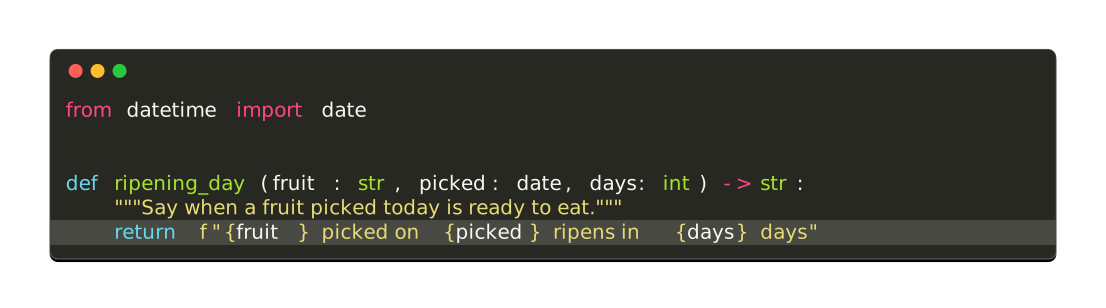
That image was drawn by the block above it, at documentation build time. Both the code and the picture come from the same lines, so neither can go stale.
Draw a file
click-extra snippet highlights a source file and writes the picture:
$ click-extra snippet --output ripen.svg ripen.py
$ click-extra snippet --help
Usage: click-extra snippet [OPTIONS] SOURCE

  Highlight a source file and write it as an image or HTML.

  Colors SOURCE with Pygments, then draws it in the same window a captured
  command is drawn in. Pass - to read the source from stdin, which needs
  --language: there is no file name left to guess from.

    click-extra snippet --output ripen.svg ripen.py

  The window is painted the background the syntax style was designed against, so
  a snippet looks like that theme does in an editor rather than like the same
  theme dropped on a foreign surface.

  Both formats are the screenshot command's:

  - .svg: a picture, for a surface that strips inline HTML;

  - .html: selectable, searchable, copy-pasteable text.

  Highlighting needs the pygments extra.

Options:
  --output FILE                Path of the file to write. Its extension picks
                               the format: .svg for an image, .html for
                               selectable text, .ansi for the escape sequences
                               themselves. Pass - to print those to the
                               terminal, which draws no window.  [required]
  --columns [auto|INTEGER]     Width, in characters, the image is laid out at.
                               Pass auto to take the longest line the source
                               holds, so nothing folds: a file was never wrapped
                               to a terminal's width, and code that soft-wrapped
                               in the picture would lose the indentation a
                               reader is there to read.  [default: auto]
  --background [dark|light]    Terminal chrome the capture is drawn on, and the
                               palette its colors resolve against. Match it to
                               the theme the captured CLI renders with: a light-
                               background theme washes out on the dark default.
                               [default: dark]
  --preset [linux|macos|plain|windows]
                               Terminal to draw the capture as: its window
                               decorations, palette, font and prompt sigil.
                               Anything stated alongside wins over it. Left out,
                               the capture keeps the renderer's own neutral
                               window.
  --border COLOR               Color of the frame drawn around the terminal
                               window, as CSS names it. Pass none to draw no
                               frame. Defaults to the one the chrome can show.
  --border-width PIXELS        Thickness of that frame, in pixels.  [default: 1;
                               x>=0]
  --radius PIXELS              How round the window's corners are, in pixels.
                               Zero squares them. Defaults to 8, or to the
                               rounding --preset terminal draws.  [x>=0]
  --backdrop COLOR             Color filling the image behind the window, margin
                               included, as CSS names it. Left transparent by
                               default, so the page shows through.  [default:
                               none]
  --shadow COLOR               Color of the drop shadow lifting the window off
                               the page, as CSS names it. Pass none to draw no
                               shadow. Defaults to the one the chrome calls for.
  --margin PIXELS              Transparent pixels left around the window, on all
                               four sides. The room the drop shadow falls into,
                               so a capture drawing one wants some.  [default:
                               48; x>=0]
  --padding PIXELS             Pixels added inside the window, around the drawn
                               text, on top of the few the renderer adds on its
                               own.  [default: 8; x>=0]
  --opacity FLOAT RANGE        How solid the window's body is. Under 1 it turns
                               see-through, the way a terminal set to
                               transparency does: whatever the capture sits on
                               shows through it, while its text, frame and title
                               bar keep their own paint.  [default: 1.0;
                               0<=x<=1]
  --watermark TEXT             Credit line drawn in the image's bottom-right
                               corner, in the margin around the window. Pass an
                               empty string to draw none, or your own text to
                               credit your project instead.  [default: generated
                               with click-extra]
  --watermark-color COLOR      Color that credit line is drawn in, as CSS names
                               it, alpha included. Defaults to a neutral gray:
                               the line sits in the transparent margin, so it
                               answers to the page embedding the image rather
                               than to the chrome.
  --head INTEGER RANGE         Keep only the first N lines.  [x>=1]
  --tail INTEGER RANGE         Keep only the last N lines.  [x>=1]
  --truncation [auto|TEXT]     Line standing in for what --head or --tail cut
                               away, or auto to rule one across the width the
                               kept lines span.  [default: auto]
  --wrap-marker [auto|TEXT]    Character closing each row a line wider than
                               --columns folds at, or auto for ↵. It takes a
                               cell of the row it closes. Left out, a line folds
                               silently, the way a terminal folds it. SVG only.
                               [default: ""]
  --line-numbers               Number the drawn lines in a gutter, the way
                               Pygments does inline. Line 1 is the first line
                               the picture shows.
  --emphasize-lines LINES      Draw a band behind the lines named, as 2,4-5.
                               Counted from 1 as the picture draws them. Ranges
                               are closed: state both ends.
  --title TEXT                 Caption drawn in an SVG's window chrome, or an
                               HTML document's title.  [default: ""]
  --fragment                   For HTML, emit the bare block instead of a
                               standalone document, to paste into a page that
                               has its own.
  --language TEXT              Language the source is highlighted as, as
                               Pygments names it. Guessed from the file name,
                               then from the content, when left out. See
                               https://pygments.org/languages/ for the ones it
                               knows.
  --syntax-style STYLE         Pygments style the source is colored with, which
                               also paints the window: a style states the
                               background its colors were designed against.
                               Defaults to monokai on the dark chrome and to
                               Pygments' own default on the light one.
  -h, --help                   Show this message and exit.

Configuration options:
  --config LOCATION            Location of the configuration file. Supports
                               local path with glob patterns or remote URL.
                               [default: ~/.config/click-extra/]
  --no-config                  Ignore all configuration files and only use
                               command line parameters and environment
                               variables.
  --validate-config LOCATION   Validate the configuration file and exit.
  --export-config FORMAT       Export the configuration in the selected format
                               to <stdout>, then exit.

Output options:
  --accessible                 Accessibility mode: disable colors and render
                               tables in a borderless, screen-reader-friendly
                               format.
  --color [auto|always|never]  Colorize the output. A bare --color is the same
                               as --color=always.  [default: auto]
  --no-color                   Disable colorization (alias of --color=never).
  --progress / --no-progress   Show progress indicators during long operations.
                               Disabled for non-interactive output (pipes, dumb
                               terminals, CI) and by --accessible.  [default:
                               progress]
  --theme [auto|dark|dracula|light|manpage|monokai|nord|solarized-dark]
                               Color theme used for help screens.  [default:
                               dark]
  --table-format FORMAT        Rendering style of tables.  [default: rounded-
                               outline]

Logging options:
  --verbosity LEVEL            Either CRITICAL, ERROR, WARNING, INFO, DEBUG.
                               [default: WARNING]
  -v, --verbose                Increase the default WARNING verbosity by one
                               level for each additional repetition of the
                               option.  [default: 0]
  -q, --quiet                  Decrease the default WARNING verbosity by one
                               level for each additional repetition of the
                               option.  [default: 0]
  --debug                      Shorthand for --verbosity DEBUG.

Introspection options:
  --time / --no-time           Measure and print elapsed execution time.
                               [default: no-time]
  --params                     Show all CLI parameters, their provenance,
                               defaults and value, then exit.
  --tree                       Show the tree of nested subcommands and exit.
  --man                        Read the command's manual page and exit.
  --help-format [carapace|json|json-full|man|markdown|markdown-full]
                               Render the command in the given format and exit.
  --version                    Show the version and exit.

Examples:

  Draw a source file as a picture a README can show:
    $ click-extra snippet --output basket.svg basket.py
  Draw it as selectable text, under a named theme:
    $ click-extra snippet --output basket.html --theme dracula basket.py
  Number the lines and point at the one that matters:
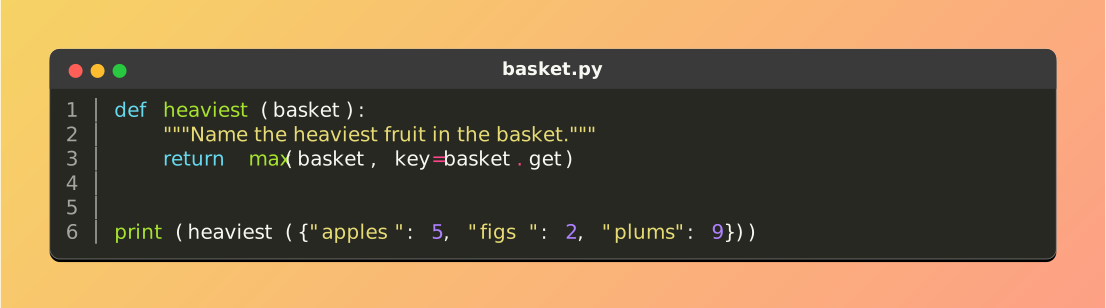
    $ click-extra snippet --output basket.svg --line-numbers --emphasize-lines 12 basket.py
The command settles three things:
Language. Guessed from the file name, then from the content.
--languagestates it outright when neither can, and a name Pygments does not know is an error rather than a silent fallback to plain text.Colors.
--syntax-stylenames any of the Pygments styles.Width. The image is laid out at the longest line the file holds, so nothing folds. A file was never wrapped to a terminal’s width, and code that soft-wrapped in the picture would lose the indentation a reader is there to read.
Pass - to read the source from stdin. There is no file name left to guess a language from, so --language is required:
$ pygmentize -l python ripen.py | click-extra snippet --output ripen.svg --language python -
Highlighting needs the pygments extra:
$ uv pip install click-extra[pygments]
Where the code goes
The --output destination picks the format, exactly as it does for a screenshot:
Destination |
Text is |
Goes where |
|---|---|---|
|
escape sequences |
your terminal, right now |
|
a picture |
a surface that strips inline HTML: a README on GitHub or PyPI |
|
selectable markup |
a page you own, where the code stays copy-pasteable |
|
escape sequences |
a file to |
Tip
On a page you control, none of these is usually the right answer. A fenced code block is highlighted by the site’s own theme, stays searchable, and follows the reader’s light or dark setting. Reach for a snippet where the surface cannot do that: a README, a slide, a social card.
Print it to the terminal
--output - skips the window and prints the escape sequences a terminal paints:
$ click-extra snippet --output - ripen.py
That is cat with colors, and it is the one destination that needs no rendering: the escape sequences highlighting already produced are what a terminal reads.
What it adds over pygmentize -f terminal16m is the line treatment and this project’s color rules. --head, --tail, --line-numbers and --emphasize-lines all work, the band becoming the row’s own background instead of a rectangle drawn behind it:
$ click-extra snippet --output - --line-numbers --emphasize-lines 4-6 ripen.py
The output also answers to --color, --no-color, --accessible and NO_COLOR like every other command here. That matters most when you redirect it: piped or written to a file, the escapes are dropped and you get plain code, where a highlighter writing straight to stdout leaves you a file full of control characters.
$ click-extra snippet --output - ripen.py > plain.txt
$ click-extra snippet --output - --color=always ripen.py > colored.txt
Nothing describing a window reaches this format, so --preset, --border, --margin, --title and the credit line are ignored: there is no window for them to describe.
The window is the style’s
A Pygments style states the background its colors were designed against, and the window takes it:
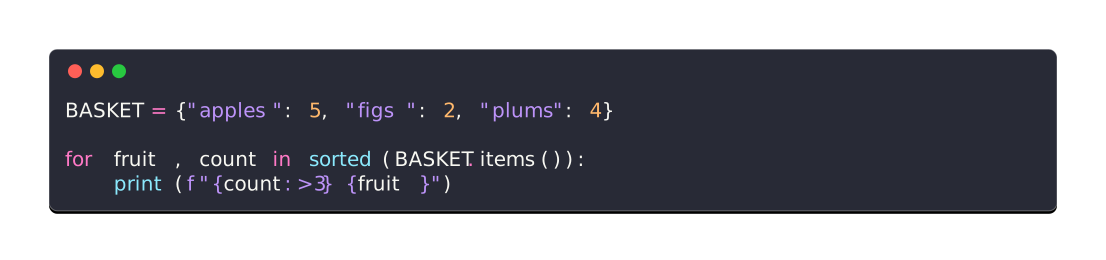
So a snippet looks like that style does in an editor, rather than like the same style dropped on a foreign surface. A light style on the dark default would wash out the same way a light-themed CLI does.
Left unstated, the style is monokai on the dark chrome and Pygments’ own default on the light one. Both were picked to sit beside a terminal capture without a step showing between the two windows: monokai paints #272822 against the #292929 a dark capture is drawn on.
Everything a screenshot wears
A snippet is drawn by the same renderer, so the whole window vocabulary carries over unchanged: --preset, --background, --border, --radius, --backdrop, --shadow, --margin, --padding, --opacity, --title, --watermark, --head, --tail, --line-numbers and --emphasize-lines all mean here what they mean there.
In your documentation
Any source block can commit its own picture. Add :screenshot: <name> to a click:source or python:source block and the build writes <name>.svg beside your pages:
```{click:source}
:screenshot: ripen-snippet
from click_extra import command

@command
def ripen():
    """Ripen a fruit."""
```
The page itself keeps its code block, which beats an image here by staying selectable, searchable and theme-aware. :mirror: adds the image to the page as well, so it also shows on GitHub and PyPI.
:emphasize-lines: bands the same lines in both. A source block has one content, so naming the lines twice would be the surprise:
```{click:source}
:screenshot: ripen-snippet
:emphasize-lines: 2
```
Use :screenshot-emphasize-lines: only where the page and the picture should mark different lines.
Stating a default once
A project drawing all of its snippets in one style states it in conf.py rather than on every block:
click_extra_screenshot_syntax_style = "dracula"
Every other click_extra_screenshot_* value from the screenshots page applies too, since both kinds of capture share one window.
Keeping snippets fresh
Nothing in a snippet runs a command or reads a clock. A committed asset thus keeps the same bytes, and the working tree stays clean: the @generated stamp names no release, so a new Click Extra version leaves it alone. That makes a snippet more predictable than a screenshot: a capture goes stale when the CLI changes, and Sphinx only rewrites it when the page carrying it is re-parsed. A snippet’s subject is the block itself, so the two move together by construction.
The :mirror: regions are refreshed offline, without a build:
$ click-extra refresh-directives docs/
click_extra.snippet API
Draw a snippet of source code as a static document.
click_extra.screenshot pictures what a command printed. This module
pictures what a file says, and hands the result to the same renderer: a
README, a slide or a social post that cannot run code equally cannot syntax
highlight it, so both need a picture.
The pipeline is the screenshot module’s, with its first step swapped:
highlight_code()colors the source with Pygments, which writes the same ANSI escape sequences a terminal would.render()turns that text into a document.
That leaves nothing to reimplement. Pygments’ terminal formatter speaks the
interchange format split_ansi() already parses, so a
snippet inherits the window, the presets, the light and dark chromes, the line
numbers, the emphasis bands and the HTML export from the captures beside it.
render_snippet() chains both, and is what the click-extra snippet
command calls.
Note
A snippet answers to a Pygments style, where a capture answers to a terminal
palette. The two name colors differently: a style states every color it uses,
while a terminal names sixteen and leaves their shades to whoever draws them.
style_palette() is where the first becomes the second.
- click_extra.snippet.DEFAULT_SYNTAX_STYLES: dict[CaptureBackground, str] = {CaptureBackground.DARK: 'monokai', CaptureBackground.LIGHT: 'default'}
Pygments style a snippet is colored with, per chrome.
Both are picked to sit beside a terminal capture without a seam showing.
monokaipaints#272822, two shades off the#292929a dark capture is drawn on, and Pygments’ owndefaultpaints#f8f8f8against a light capture’s white. A darker style renders perfectly well on its own and steps visibly when the two images share a page, which is the case this default is chosen for.
- click_extra.snippet.TAB_WIDTH = 4
Spaces a tab is expanded to before the snippet is laid out.
A terminal expands tabs as it prints, so captured output never carries one and the renderer never had to answer for it. A file does carry them, and a tab is the one character whose width depends on where it starts: it reaches the next stop eight columns along.
grid()weighs each character on its own, so it reads every tab as the eight cellscell_width()answers for one measured alone, wherever the tab actually sits. Expanding up front is what keeps the grid arithmetic true, at the width a reader expects of source code rather than of a terminal.
- click_extra.snippet.FALLBACK_LEXER = 'text'
Lexer a snippet is colored with when nothing identifies its language.
Emits one unstyled token per line, so an unrecognized file is drawn as the plain text it could not be proven to be, rather than miscolored as a guess.
- click_extra.snippet.known_styles()[source]
Every Pygments style a snippet can be colored with, sorted.
Cached: the walk behind
pygments.styles.get_all_styles()reads the plugin entry points on every call, and a process never gains a style.
- click_extra.snippet.resolve_lexer(code, *, language=None, filename=None)[source]
Pick the lexer a snippet is colored with.
Three sources answer, in falling order of how much they know: the language stated outright, the file name it was read from, and the code itself. A stated language that names no lexer is an error rather than a fallback, since silently drawing
pythnas plain text hides the typo in a picture nobody re-reads.- Parameters:
- Return type:
Lexer- Returns:
the lexer.
- Raises:
ValueError – when
languagenames no lexer Pygments knows.
- click_extra.snippet.resolve_style(style, background)[source]
The Pygments style a snippet is colored with.
- Parameters:
style (
str|None) – the style asked for, orNonefor the chrome’s default.background (
CaptureBackground) – chrome the snippet is drawn on.
- Return type:
- Returns:
the style’s name.
- Raises:
ValueError – when
stylenames no style Pygments knows.
- click_extra.snippet.style_palette(style, background, *, preset=None)[source]
The colors a snippet’s window is drawn with, taken from a syntax style.
A style states the background it was designed against, and a snippet drawn on any other one is a picture of that style in a window it was never meant for:
monokai’s comment gray reads on#272822and disappears on white.The chrome’s own palette is where the rest comes from. Its sixteen ANSI slots are carried through untouched, being what a preset publishes and what a run captured in the same document resolves against; a snippet consults none of them, since Pygments states every color outright.
Note
A style naming no color for plain text keeps the chrome’s foreground, which is what the twenty-five light styles shipping no
Token.Textcolor need: their code is black on near-white, and black is what a light chrome already names.- Parameters:
style (
str) – name of the Pygments style.background (
CaptureBackground) – chrome the snippet is drawn on.preset (
TerminalPreset|None) – terminal the window is dressed as, whose palette the decorations keep answering to.
- Return type:
- Returns:
the palette.
- click_extra.snippet.highlight_code(code, *, language=None, filename=None, style='monokai')[source]
Color source code the way a terminal would print it.
Pygments’ true-color terminal formatter writes
38;2;r;g;bsequences, which is the one interchange format both capture renderers already read. So the output of this drops straight intorender(), with nothing in between.- Parameters:
- Return type:
- Returns:
the source, ANSI escape sequences included.
- Raises:
ValueError – when
languagenames no lexer Pygments knows.
- click_extra.snippet.render_snippet(code, *, format=CaptureFormat.SVG, language=None, filename=None, style=None, columns='auto', head=None, tail=None, truncation='auto', line_numbers=False, emphasize=(), wrap_marker='', title='', unique_id=None, full=True, background=CaptureBackground.DARK, preset=None, chrome=Chrome(border=None, border_width=1, radius=None, backdrop='none', shadow=None, margin=48, padding=8, opacity=1.0, watermark='generated with click-extra', watermark_color=None))[source]
Color source code and render it as a document.
Chains
highlight_code(),trim_lines()andrender().Note
The width defaults to
AUTO_COLUMNS, where a terminal capture pins eighty. A command wraps its own output to the width it was told about, so a capture at that width folds nothing; nobody wrapped a source file to any width, and a picture that soft-wrapped its code would break indentation the reader is meant to be reading.- Parameters:
code (
str) – the source to draw.format (
CaptureFormat) – which document to produce.language (
str|None) – the language, as Pygments names it. Seeresolve_lexer()for what answers when it is left out.filename (
str|None) – name the code was read from, extension included.style (
str|None) – name of the Pygments style to color with.Nonetakes the chrome’s own, seeDEFAULT_SYNTAX_STYLES.columns (
int|Literal['auto']) – width, in characters, an SVG is laid out at.truncation (
str) – line standing in for the lines cut byheadortail.line_numbers (
bool) – draw each line’s number in a gutter, seenumber_lines().emphasize (
Sequence[int]) – lines to draw a band behind, counted from1.background (
CaptureBackground) – seerender().preset (
TerminalPreset|None) – seerender().
- Return type:
- Returns:
the rendered document.
- Raises:
ValueError – when
languageorstylenames nothing Pygments knows.